• Skip to primary navigation
  • Skip to main content
  • Skip to footer
OMA Comp

OMA Comp

Web Design & Development

  • Home
  • About
    • Our Culture
    • Client Testimonials
    • Photo Gallery
    • Video Testimonials
  • Services
    • Web & Creative
      • Custom App Design
      • Drone Services
      • Graphic Design
      • Logo Design
      • Online Stores
      • Photography/Videography
      • Video Production
      • Web Design/Development
    • Digital Marketing
      • Advertising & Paid Search (PPC)
      • B2B Marketing
      • Content Marketing
      • Email Marketing
      • Press Releases & Public Relations
      • Social Media Management
    • SEO & Online Visibility
      • Local SEO
      • Reputation Management & Repair
      • Search Engine Optimization (SEO)
      • Website Compliance (ADA, WCAG)
    • Technology & IT Solutions
      • Cloud Solutions
      • Custom Integrations
      • IT Support & Maintenance
      • Network Setup & Security
      • Managed Hosting
    • Strategy & Consulting
      • Analytics & Reporting
      • Marketing Strategy Development
      • Training & Support
      • Website & Brand Review
      • Social Media Boot Camp Classes
      • Events
  • Portfolio
  • Blog
  • Contact
    • Website Design Form
    • Careers
    • Internships
    • Review Us
  • Online Bill Pay
  • Request a Quote
  • 248-616-3057

Editor

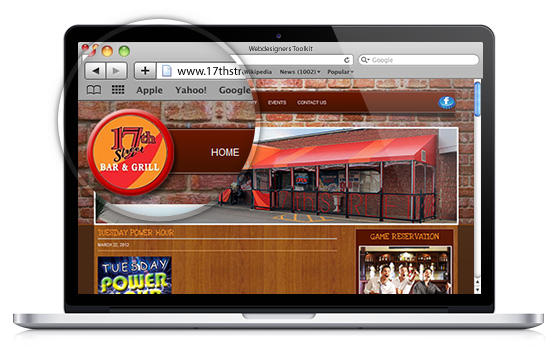
17th Street Bar & Grill

December 22, 2011

 17th Street Bar & Grill

Client: 17 Street Bar, Sterling Heights, MI

Not your typical bar. Big comfy booths, plasma TVs, high-end comfort. A cuisine that ranges from fried calamari, to hamburgers, to Eggplant Fiona. A menu and attentive service that will leave you truly satisfied.

Assignment

17th Streets website was static, outdated, and plain boring. They needed something to truly portray the atmosphere of the bar as well as make it easy to edit the site themselves.

Solution

OMA comp built the new 17th Street website on top of WordPress so changes can be made quickly and easily. Menu items, pictures, and events can now be updated at moment’s notice. Bar atmosphere and web design at its finest.

Components

  • Website Design
  • Social Media Integration

Filed Under: Web Design Tagged With: Restaurant/Café

How To Manage A Hard Drive Space

October 30, 2011

Windows provides us with many utilities that helps us in managing our hard drives and keep it working in excellent running condition.

How To Check Our Hard drive space?

  • Open “My Computer” by double clicking on its icon showing on your screen.
  • Then right click on the drive you want to check for free available space.
  •  Select “Properties” and the information will be available on your screen.

How to use disk clean up?

Using “Disk Cleanup”, you can free more available space on your hard disk by deleting unneeded files from your hard disk.

  • Open “My Computer” by double clicking left mouse button.
  • Select Hard Drive by right clicking on it.
  •  Select “Properties” and open its “General” tab.
  • Then click on “Disk Cleanup” to open its dialog box.
  • Read the description in the disk cleanup dialog box and select the files you want to delete by clicking on the check boxes besides them.
  • Then click on “Ok” and then “Yes”.

We can also open the “Disk Cleanup” program by :

  • Click on “Start” to open it.
  • Then select “All Programs”.
  • After that select “Accessories”.
  • Then “System Tools”.
  • Then click on “Disk Cleanup” to start the program.

How to scan our hard drive for errors?

The “Scan Disk” utility is used to examine the surface errors, files or folder problems occuring on your computer. “Scan Disk” utility rectifies these problems and makes the computer work in perfect condition.

If you use your computer frequently, then you should run “Scan Disk” once a week and if your an average user of your computer then once a month is good enough.you can also use scan disk if you encounter any hard drive problem.

  • Open my computer by double clicking on it.
  • Select your hard drive and open its properties.
  • Click on the tools tab.
  • Then click “Check Now”.
  • Select the option to use and start.scan disk then checks for errors on your selected drive. This process may take some time.
  • After finishing the test, “Scan Disk” provides a summary of the problems found. Following the on-screen instructions you can fix the problems that scan disk has found.
  •  Click close.

How to “Defragment” a drive?

Windows divides the file information into bits and stores them in different parts of your hard drives. This is known as “Fragmentation”. To use the file, Windows must search for the bits and put it back together. This process damages your hard drives performance level.

The “Disk Defragmenter” utility retrieves the data and stores it at one place. This improves the level of performance of the computer.

Note: It is important to know that while “Disk Deframenter” utility is running, do not use the mouse, the keyboard, infact any kind of network communication, or else it will stop the defragmention process and cause it to start over again.

Following are the steps to defragment a drive.

  • Open “My Computer”.
  • Select the drive and open “Properties”.
  • Open “Tools”.
  • Click on “Defragment Now”.
  • “Disk Defragmenter” will start automatically if you don’t click on “Start” or “Defragment”.
  • The progress will be shown on screen. After finishing the task, “Disk Defragmenter” asks if you want to quit the program. Click on “Yes” if you do not wish to defragment another drive or click on “No” if you do wish to defragment another drive.

Filed Under: Computers

Hello!

September 13, 2011

OMA CompIn this day and age, the entire World is connected by computers and their technology. We use them every day and for some of us, our lives our bound by their efficiency, reliability, and convenience. At OMA Comp, we are a group of people who understand the needs of computer technology in everyday life.

OMA Comp handles all IT solutions such as web design, hosting, social media management, security, and much more. For over 15 years we have built long lasting relationships with our clients. Our vision is to use the latest technology to offer innovative solutions to our clients business and home office needs. We strive for excellence in quality of service, innovative support and the lowest prices. Our goal is 100% customer satisfaction.

You will find information on all your computer needs right here on our website, and please don’t hesitate to visit our contact page to request more information. There is nothing we can/t do and we live and breathe by our motto. If you can THINK IT, we can DO IT! We hope to hear from you soon. Thank you for choosing OMA Comp.

Filed Under: News

Cleaning Your Computer

July 30, 2011

Keeping your computer clean keeps it performing at its best. But it should be cleaned with proper measure. Here is a list of items which you may want as your computer cleaning kit:

  1. A soft cloth
  2. An aerosol can of air that has a narrow straw like extension
  3. Iso-propyl Alcohol
  4. Cotton Swabs
  5. A CD drive cleaning kit

Cleaning the Exterior:

Warning: Unplug the power cord and modem cable from the socket to avoid possible injury from electrical shock. When you shut down your computer, it turns off but some current still flows through the computer.

Before cleaning the computer turn it off and remove its battery.

Always use a damp lint free cloth to clean your computer. Any other type of cloth may damage the finish on your computer or any of its components.

Keep the vents free of dust because the heat of the components is released by drawing the air through the vents. ‘Do not try to clean the dust from the inside of the computer’. Brush the dust away from the vent with a damp cloth. (Be sure not to drop a single drop of water in the vents otherwise it may damage your computer.)

Cleaning the Keyboard

The easiest way to clean the lint from under the keys is to using an aerosol can of air with a narrow straw like extension. You should clean your keyboard occasionally to clean the lint stuck under the keys.

If you accidentally spilled some liquid on your keyboard, turn off your computer and lift the keyboard upside down. This will make the liquid flow out of the keyboard without affecting its working.

Clean the Screen

Squirt a little water on a soft cloth and wipe the screen. Remember; never squirt any liquid directly on the screen.

Caution: An LCD (Liquid Crystal Display) screen is made of specially coated glass and can be scratched or damaged by abrasive or ammonia-based windows cleaners.

Clean the Mouse

Cleaning the mouse regularly will improve its accuracy otherwise the mouse pointer will start moving erratically across the screen and will become hard to control.

Following are the steps to clean a mouse.

1. Turn the mouse upside down.

2. Rotate the retaining ring on the bottom of the mouse counter-clockwise.

3. Remove the retaining ring and mouse ball.

4. Use a soft cloth to remove any dust dirt or lint on the mouse ball.

5. Use “Iso-propyl Alcohol” and a “Cotton Swab” to clean the mouse rollers.

6. Replace the mouse ball and lock the retaining ring.

Filed Under: Computers

Srodek

May 2, 2011

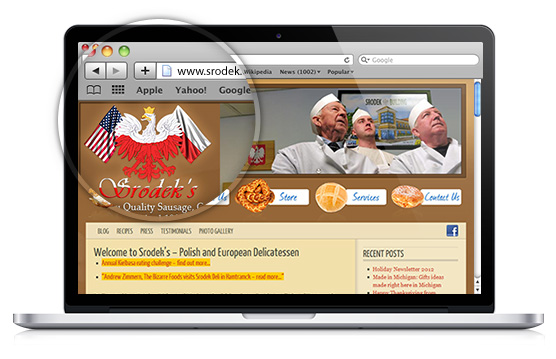
Srodek

Client: Srodek, Hamtramck, MI – visit website

It all started in 1980 when Walter and Marianna Srodek immigrated to the small city of Hamtramck, Michigan. This is when they decided to open a family owned and operated delicatessen. Over the years Srodek’s has become an upscale market in the heart of Hamtramck. It is an establishment that focuses on rich Polish and European food traditions.


Filed Under: Web Design Tagged With: E-commerce

Feinberg Consulting

February 15, 2011

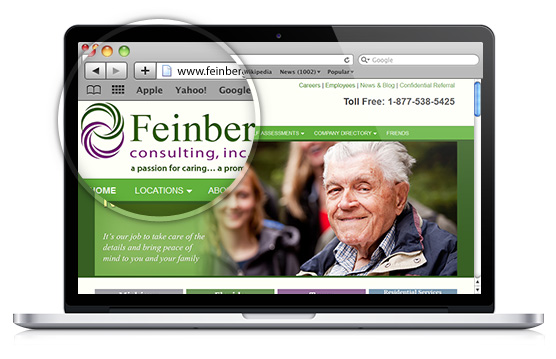
Feinberg-Consulting

Client: Feinberg Consulting, Farmington Hills, MI – visit website


With the health care field continuing to grow, Feinberg Consulting is truly at the forefront. 16 years of care management experience. Offices in Michigan, Florida, and Ohio. They live by their slogan: a passion for caring…a promise of peace of mind.

Assignment

As Feinberg Consulting began to expand dramatically, there website was stuck in the same spot. Mediocre layout, boring menus, and old information. OMA Comp was given full control to make it better. We delivered.

Solution

During the re-vamp of the entire website, OMA Comp helped Feinberg Consulting reach a new level. Custom software to track and manage cases via all electronic means. Computers, smart phones, tablets. Increase workflow and increasing profit. We are here for you.

Components

  • Website Design
  • Custom CMS
  • Software Design and Management
  • PHP/CSS/Javascript
  • Social Media Integration

Filed Under: Web Design Tagged With: Medical Website

  • « Go to Previous Page
  • Page 1
  • Interim pages omitted …
  • Page 49
  • Page 50
  • Page 51
  • Page 52
  • Page 53
  • Go to Next Page »

Footer

Contact Information


OMA Comp

318 Woodlawn Avenue
Royal Oak, MI 48073-2615

Phone: 248-616-3057
Fax: 248-232-0075

Review Us | Request A Quote

Contact Us

Recent Posts

  • How to Use Google Ads and Meta Ads Together for Maximum ROI
  • Why Every Business Needs a Strong Local SEO Strategy
  • Exploring the New Apple iOS: Key Features, Improvements, and What Users Should Know
  • Boost Your Ad Performance with A/B Testing
  • Boost Sales through Social Media Engagement

Newsletter Signup

Subscribe below to hear about our latest product offerings and promotions.

Subscribe

Connect With Us

  • facebook
  • instagram
  • linkedin
  • yelp
  • x
  • youtube

Copyright © 2025 OMA Comp · Repair Policies · Terms and Conditions · Privacy Policy · Service Ticket

  • Phone: (248) 616-3057
  • Review Us
  • Newsletter Sign Up